Rehearsal edition · September 5, 2026 · Not meeting-tested. The presenter has confirmed the work MacBook and authorized setup. A separate OBS rehearsal profile/collection is configured there; native scene activation, reset and end-of-file checks have run. Local virtual-camera and BlackHole fixture tests have also passed through native receiving inputs. Zoom settings, menu export/import and the independent-attendee rehearsal remain unresolved. No menu-exported, fresh-import-tested OBS configuration or installed-settings screenshot is supplied yet. Do not treat the kit as ready to import or use it for a live meeting before completing the acceptance record.
The two videos stay separate. OBS plays the supplied talking head; Google Slides plays the silent presentation. The presenter starts each manually. This chapter covers operation, not editing: use the Agent Production Playbook, its recording-alignment contract, and the editing recipes. Final production still requires the single consolidated storyboard/demo approval. Product demos require inspection of the real product and its current instructions; the neutral fixtures here establish no product behavior.
1. Establish the actual machine
Fill in environment.json from the computer that will present, not a build server, an old recording's encoder tag, or a remote capture workstation. Keep the filled record private. The following sanitized inventory was collected on the user-confirmed presenter Mac on September 5, 2026 UTC. Versions came from installed bundles; OBS was also inspected through its native API. About windows and Zoom device menus still require on-machine UI verification.
| Record | Where to establish it | Current verification |
|---|---|---|
| Computer role, model, OS version/build | Presenter confirmation and OS inventory | Work MacBook Pro, Apple silicon; macOS 26.6.2, build 25G83 |
| OBS version/build | Installed application and native API | OBS 32.0.1, build 18049297615; native fixture scene tests run |
| Zoom Workplace version/build and account policy | Installed app; then Zoom UI and host permission | 7.0.6 (84834) installed; device selections, processing and meeting policy unverified |
| Browser version and Slides account access | Installed browser; then actual Drive playback | Chrome 152.0.7977.77 installed; deck access/playback unverified |
| Displays, resolution, scaling and arrangement | OS inventory; then identify shared/control surfaces | Main external 1920×1080 at 60 Hz; internal 3024×1964; not mirrored; share surface/scaling unverified |
| Headphones, physical microphone, live camera, interface | Device menus; test selected endpoints | Presenter uses normal Mac audio output, not headphones; OS default rechecked as MacBook Pro Speakers; no physical capture added to rehearsal OBS |
| Virtual-audio device and driver version | OS audio-device list and installed driver | BlackHole 2ch 0.6.1 already installed, 48 kHz; local native return-capture test passed, Zoom unverified |
| Permissions, admin restrictions, network and power | OS privacy settings and actual meeting | Existing OBS camera extension enabled; remote UI automation denied Accessibility permission; Zoom permissions/network test pending |
Selected route, not yet meeting-verified: this Mac's existing BlackHole 2ch, without another router or a change to OS default devices. A separate Meeting Playback Rehearsal profile and collection are configured in OBS; existing settings were backed up privately. Windows and Linux remain unverified, with no import or device mapping promised. Do not translate device names by guesswork.
Native API tests confirmed three scene-triggered starts, no restart when selecting the already-active PLAY scene, SAFE deactivation, and full 30-second fixture playback to the finished card without looping. These are not three manual cue rehearsals. A temporary native video-capture receiver, kept outside Program to avoid feedback, received READY, PLAY, FINISHED and SAFE through OBS Virtual Camera. A separate native BlackHole input, with its monitoring OFF and HEAD still Monitor Only, returned all three diagnostic clicks into a private recording. Temporary receivers were removed and all outputs stopped afterward. Initial FFmpeg/AVFoundation attempts stalled or produced short silent captures; those failures remain recorded rather than counted as passes. These are local fixture tests, not Zoom or attendee verification. See the verification ledger.
Dependencies, permission and restart gate
Get explicit owner/admin permission before installing any driver, authorizing a camera extension, or changing system-wide routing. No such changes were made for this edition. Prefer an already-installed, isolated application-to-application audio route if it can pass the same tests; do not add a second router merely to match this guide.
| Dependency | Cost / license | Installation and restart requirements |
|---|---|---|
| OBS Studio | No license fee; GPL-2.0-or-later; not bundled | Use the official installer. On supported modern macOS, authorize OBS's camera extension, then restart OBS. The exact path depends on OS version. [O4, O8] |
| BlackHole 2ch, selected Mac route | Free download with optional donation; GPL-3.0; not bundled | Already installed on this presenter Mac; no install or restart performed. For a new installation: official package, admin authorization; close audio apps first, restart the system when prompted, then reopen OBS and Zoom. [B1, B2] |
| Zoom Workplace | Proprietary; Basic is free ($0) with a listed 40-minute group-meeting limit; paid/account features vary; no purchase assumed | Existing authorized installation/account preferred. Check host policy, total rehearsal/meeting duration and account features; relaunch after device/permission changes. Do not upgrade during a live event. [Z1, Z5] |
| Browser / Google Slides and Drive | Google service terms; storage/account/organization limits may apply | Presenter must have access to the deck and embedded video. Wait for Drive processing and rehearse actual browser playback. [G1, G2, G3] |
| Speaker output and displays | Existing hardware; no headphone purchase required | This presenter uses MacBook Pro Speakers. Rehearse return audio and any live-mic handoff at the intended volume; any device/display change needs another route/share check. |
For macOS 13–14, OBS documents System Settings → Privacy & Security → Security for its extension. For macOS 15+, General → Login Items & Extensions → Camera Extensions. Zoom needs Camera and Microphone permission, plus Screen & System Audio Recording (or the OS-version equivalent) to share. OBS needs access to its media folder; a media-only scene does not justify granting capture of your physical microphone or entire screen. Use the installed permissions prompts and relaunch when requested. Do not disable platform security to force compatibility. [O4, O5, Z6]
2. Four paths, one outgoing narration
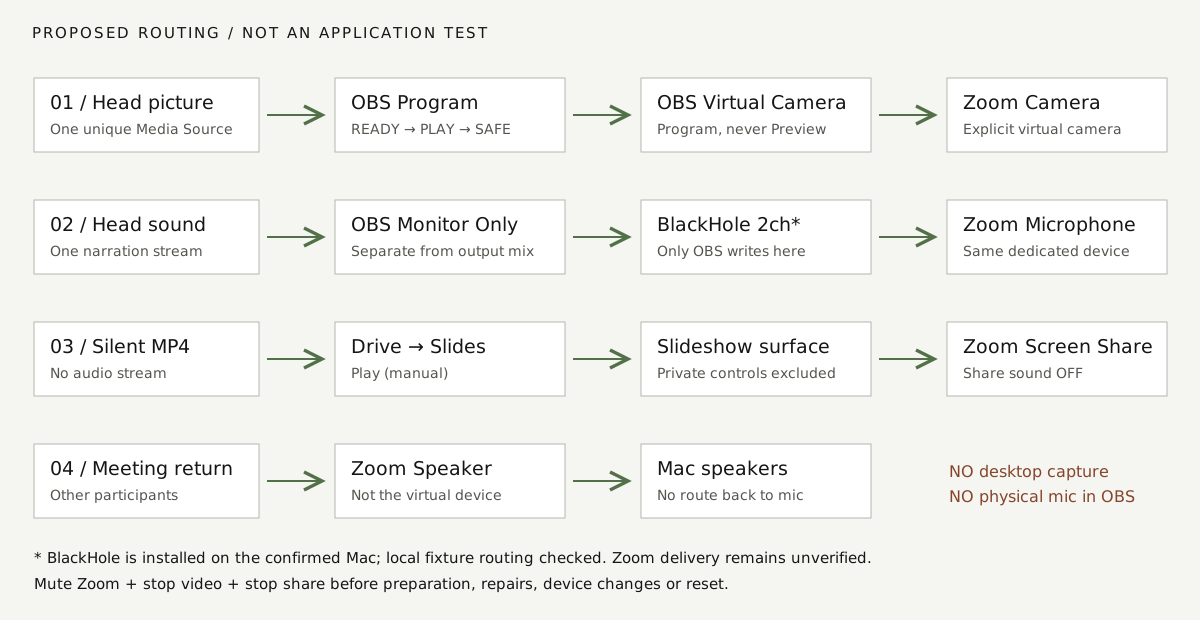
The diagram is an original routing schematic, not an application screenshot or proof of delivery. Each number corresponds to a device selection:
- Picture: talking-head Media Source → OBS Program → OBS Virtual Camera → Zoom Camera OBS Virtual Camera. Select Program, never Preview or a fixed source, in the virtual-camera controls. It is a video path; configure sound separately. [O1]
- Sound, selected Mac route (Zoom still unverified): the same Media Source → OBS monitoring device BlackHole 2ch → Zoom Microphone BlackHole 2ch. No other app should send to this device. For this presenter, Zoom Speaker should explicitly select MacBook Pro Speakers, matching the existing macOS output; headphones are not part of this setup. OS default output and Zoom Speaker must not be BlackHole, an aggregate device, or a multi-output device that includes it. No OS default change was needed for the native tests; do not make one without permission. [B1; chosen routing design]
- Slides: silent presentation MP4 → Drive → embedded video in Google Slides → Zoom share of that slideshow window or dedicated presentation display. Share sound OFF. Never screen-share OBS or the talking-head player. [G1, Z2; chosen separation rule]
- Return: Zoom Speaker → MacBook Pro Speakers. No Desktop Audio, Audio Input Capture, screen/application audio capture or physical microphone source in the operational OBS collections. Zoom Microphone must stay BlackHole 2ch during prerecorded playback. Keep the independent attendee physically separate or use headphones there, and mute their mic except during a controlled return test. If a live physical microphone is needed later, test that handoff separately: speakers, room acoustics and echo cancellation can create a return path. Speaker-based meeting delivery has not yet been rehearsed. [Z6]
Use a private control display for OBS, Zoom controls and the runbook, with a second display for the Slides slideshow if available. Share only the verified slideshow surface, not a desktop containing private windows. On one display, window switching can obscure controls or change the shared surface; the alternate layout must be separately rehearsed before use. Disable notifications and test what an attendee sees when OBS receives focus.
Monitoring is not the streaming/recording mix. OBS's Monitor Only (mute output) sends a source to its selected monitoring device, while excluding it from the ordinary output mix. Monitor Off would remove the proposed Zoom audio path; Monitor and Output also puts it in OBS's output mix. Start with Monitor Only, source fader at 0 dB, no filters, no sync offset, and no streaming/recording. Do not assume a silent local OBS recording means Zoom is silent, or that the source mute button is the emergency isolation control. Zoom Mute is the first safety barrier. [O6; defaults pending application tests]
This minimum-dependency route deliberately does not return the prerecorded narration to the presenter's local speakers. OBS meters indicate activity, not attendee delivery. Use the independent endpoint for confirmation; do not add a second local audio monitor that could create a loop. If the operator must hear the narration throughout, stop and design/test that extra monitor path rather than changing the system default output mid-meeting.
3. Build isolated OBS states
Not yet reproduced in OBS. These are construction instructions and chosen defaults to test, not an application-exported collection. Before any preparation: Zoom Mute, Stop Video, Stop Share; OBS Stop Virtual Camera. Saving source properties or changing a collection can activate media. Preparation is safe because outgoing meeting paths are closed, not because Preview is assumed silent.
Export the current collection using Scene Collection → Export and the current profile using Profile → Export, to a private backup folder. Profiles may include account/stream settings: never publish those backups. Note the selected collection/profile and global preferences. Create Scene Collection → New → Meeting Playback Rehearsal, then Profile → New → Meeting Playback Rehearsal. Do not duplicate a collection containing live cameras or desktop capture. Profiles and collections are separate; neither isolates every global preference. [O2, O3]
Scene and source contract
| Scene | Sources, bottom to top | Intended state |
|---|---|---|
01 READY — no media |
Image Source ready.png only |
Static ready card, no sound. Select before closing/reopening OBS. |
02 PLAY — one media source |
Image Source finished.png; Media Source HEAD — only instance |
One unique file source. Entering this scene is the deliberate start action. |
03 SAFE — no media |
Image Source safe.png only |
Static safe card, no sound. This does not mute Zoom by itself. |
All cards and videos are inside the unpacked kit's media/ directory. Use Sources → + → Image for cards and Sources → + → Media Source → Create new for the rehearsal head file. Do not choose “Add Existing,” nest the PLAY scene, or reuse HEAD in READY/SAFE. A shared active source defeats the intended deactivate/restart boundary. Keep transitions on Cut, not a dissolve that overlaps scenes. Leave all media/restart/scene hotkeys unassigned for the initial test; mouse scene selection avoids untested global shortcut collisions.
With Studio Mode off, selecting a scene changes Program immediately. With it on, selecting a scene changes Preview; a transition is needed to put it in Program. The configured rehearsal profile uses Controls → Studio Mode OFF. If you need Studio Mode, re-test preparation, first-frame playback and safe exit; do not assume Preview cannot produce monitoring audio. [O7]
Media properties and transforms
Right-click HEAD → Properties. Set Local File to head-calibration.mp4; Loop OFF, Restart playback when source becomes active ON, Show nothing when playback ends ON, Close file when inactive ON, speed 100%, hardware decoding OFF initially. Closing on inactivity is chosen for an explicit reset, at the cost of possible startup delay. Measure that delay; don't hide it in a zero-offset assumption. [O9]
On end-of-file, the intended result is the finished card under the media, no loop and silence. The scene remains PLAY: native Media Source does not imply an automatic SAFE transition. To replay, intentionally go SAFE → READY → PLAY only after muting, stopping video/share, and resetting both files. Clicking PLAY again while already active is not a defined restart procedure.
Select each source → Edit → Transform → Reset Transform, then Fit to Screen. Inspect Edit Transform for zero crop, no rotation, centered fit, and preserved aspect ratio; lock each source afterward. For a 1920×1080 source on a 1920×1080 canvas this is a full-frame 1:1 fit at position 0,0. Different aspect ratios should letterbox, not stretch; re-fit after changing canvas dimensions. [O10]
Video and audio settings
| Path | Rehearsal default | Decision boundary |
|---|---|---|
| Settings → Video → Base (Canvas) Resolution | 1920×1080, 16:9 | Matches these fixtures; confirm against actual footage. |
| Settings → Video → Output (Scaled) Resolution | 1920×1080 | Output encoding setting, not proof of Zoom's camera or share resolution. |
| Settings → Video → Common FPS Values | 30 | Fixture rate; a 60 fps recording can be sampled at 30 without speeding it up. Compare motion and load in the actual meeting. |
| Settings → Audio → Sample Rate / Channels | 48 kHz / Stereo | Fixture audio rate; match the route's format. Stereo OBS settings do not guarantee stereo Zoom reception. |
| Settings → Audio → Global Audio Devices | All Desktop Audio and Mic/Aux devices Disabled | Recheck after imports and profile/collection changes. |
| Settings → Audio → Advanced → Monitoring Device | Explicit BlackHole 2ch on this Mac, never Default | Reselect locally. Mac Audio MIDI Setup → Window → Show Audio Devices → BlackHole 2ch: inspect 48,000 Hz format; changing it needs permission. |
| Edit → Advanced Audio Properties → HEAD | Monitor Only (mute output), 0 dB, balance center, sync offset 0 ms | Calibrate gain and sync at attendee endpoint; no blanket processing prescription. |
| Controls → Virtual Camera gear | Program output | Older layouts may show Internal → Program Output. Confirm installed labels; never fixed Scene/Source or Preview. |
Video paths and frame-rate controls are documented by OBS [O7]; the table's values are configured rehearsal defaults on the confirmed Mac, not attendee measurements. For actual footage inspect width/height, aspect ratio, frame rate, audio sample rate, track count and duration with ffprobe. Select one intended narration stream. Multiple source-file audio streams are not the same as OBS output-track checkboxes. If source track selection is unclear, preserve the original and create a private playback copy containing only the intended stream; validate it against the original before use. Never mix duplicate narration tracks.
The private production record may contain media measurements; they are intentionally absent from the public kit. Actual delivery settings and offsets remain private and unresolved until rehearsal. Account policy, bandwidth, endpoint layout and Zoom processing can reduce received camera quality. Capture the attendee's Video and Screen Sharing statistics separately; setting 1080p in OBS is not a 1080p delivery guarantee. [Z3]
Adapt to different media, without touching the original
These example filenames are placeholders, not supplied recordings. With optional FFmpeg/ffprobe installed, work in a private folder and inspect the actual input:
ffprobe -v error -show_entries format=duration:stream=index,codec_type,codec_name,width,height,r_frame_rate,sample_rate,channels -of json "talking-head-original.mov"
Listen to the intended audio stream and confirm it against the transcript. If the first audio stream is the verified narration and a one-stream playback copy is needed, the following copies the first video and first audio without re-encoding, and refuses to overwrite an existing file:
ffmpeg -n -i "talking-head-original.mov" -map 0:v:0 -map 0:a:0 -c copy "talking-head-playback.mov"
Do not run this with an unverified track selection. If narration is on another audio stream, use its audio-relative index after inspection; 0:a:0 means first audio stream, not global stream zero. This command creates a private derivative, not a publishable asset. Compare full duration, first/last frames, audio start and lip sync against the preserved original. Unsupported copy/codec combinations need an explicit, reviewed transcode decision, not an improvised replacement.
While meeting outputs are closed, relink HEAD to the verified playback file, re-fit it with aspect ratio preserved, then recheck monitoring and all media flags. Derive H/T/L/E and phrase checkpoints from the actual recording. Re-time the separate presentation around measured S; its silent fixture is not a template with valid production timing. Verify zero presentation audio streams with ffprobe -v error -select_streams a -show_entries stream=index -of csv=p=0 "presentation.mp4" (expected output: empty). Repeat the cold/warm starts and full-duration attendee test for the new pair.
4. Configure Zoom and Google Slides
In Zoom Settings → Video (or Video & effects in the installed version), select OBS Virtual Camera. In Settings → Audio, choose Microphone BlackHole 2ch for the selected Mac route and Speaker MacBook Pro Speakers, matching this Mac's normal output. Reconfirm using the arrows beside Audio/Mute and Video in the meeting. Do not use “Same as System” for either route. Test the speaker with no outgoing playback. Camera framing effects, backgrounds, auto-framing and mirroring should be checked at the attendee endpoint; turn off effects for the initial comparison. [Z1]
Start with the installed default microphone mode and record its exact name, automatic-volume setting and suppression level. At the independent endpoint compare soft speech, pauses, consonants and loud phrases. Only if processing damages narration, compare Original sound for musicians with documented subsettings and its in-meeting state. It can remove suppression; it is not universally better. Record the selected mode, gain and any sync adjustment, repeat the full test, and keep physical-mic/return paths excluded in either mode. [Z4]
Upload only the silent presentation fixture to an authorized Drive account. In Slides Insert → Video → Google Drive, insert it on a 16:9 slide and size it to fill. Select the video → Format options → Video playback → Play (manual). Confirm start/end trims span the complete file; if the mute option is available, enable it as a secondary guard. Do not publish the deck to the web. Verify presenter access to the deck and video, processing completion and full-duration playback. [G1, G2]
Open the slideshow on the intended presentation display/window. In Zoom Share → select that surface → Options, set Share sound OFF. Compare Optimize for video sharing ON versus OFF with the fixture's motion and small text at the attendee endpoint; record the chosen setting. Optimization can hurt static text, and the menu can vary by app version. Reconfirm Share sound after changing any share option. Do not substitute Zoom's local-video sharing feature: this workflow deliberately keeps Slides as the separate presentation player. [Z2]
Live handoff, if required
This three-scene collection contains no live camera or live microphone. No live handoff is necessary if you join muted with video off. To speak live before/after playback: remain in READY/SAFE; mute Zoom first; choose the physical mic; choose the live camera only while video is stopped; test deliberately before unmuting/starting video. To return to prerecorded playback, mute/stop video again, select the virtual mic/camera, verify READY and reset. Never add the physical mic to the playback mix as a convenience. Device changes can alter processing and latency; include the actual handoff in rehearsal.
5. Timing and rehearsal
Use the editable timing worksheet and private trials.csv. The clock starts when presentation playback advances from media time zero, not the mouse click that asks Slides to start or a paused poster appearing. Measure C from the rendered presentation. Measure R from the visible content transition to talking-head playback at source-media time zero, including application-focus, manual reaction and media-start latency. The first displayed frame may be still: do not use first motion or first speech as file start. Do not assume an OBS frame is an attendee frame.
If either start is not visually distinguishable, observe a later identifiable event with a known source timestamp and subtract that timestamp to recover the media's time-zero origin. For a head event at source time h observed at presentation-clock time A, S = A − h and R = A − h − C. If the presentation's first observable event occurs at its source time p, subtract p from its observation time to establish the presentation origin first. Record the chosen events, their media timestamps and measurement uncertainty privately. Use one common observation clock, not two unsynchronized device clocks. This preserves an initial still frame, silence or pause; it does not authorize cutting it away.
| Symbol | Meaning on the shared timeline |
|---|---|
| C | Presentation cue time; a recognizable content change, not a required countdown |
| R | Measured cue-to-talking-head media-time-zero delay for one start, not cue-to-first-motion |
| S = C + R | Talking-head start offset |
| H | Actual talking-head file duration |
| T | Onset of the actual ending wave/pause, verified by watching the recording |
| P | Presentation end time, measured from its start |
| B | Required talking-head buffer remaining after P; set from measured manual shutdown time plus margin |
| L (additional) | End of all necessary recorded speech, including substantive thanks |
| E (additional) | End of the usable clean wave/settled hold, before reaching for controls or other unwanted movement |
Required: S + T ≤ P ≤ S + H − B, with all necessary speech and visual proof complete by P. Also require S + L ≤ P and, where the clean hold ends before the file, the stricter P + B ≤ S + E. A file tail containing unwanted movement is not usable shutdown time. Missing footage, uncertain T/L/E or an empty end window is a storyboard-review issue, not permission to alter the recorded performance.
Run at least three starts, including a cold/reopened-file start and warm starts, with the real app focus sequence and intended share layout. Record C, R, S, first video frame and first sound arrival, sync errors and manual mute/video-off completion. Do not discard a slow trial as an outlier without a reason. Three trials describe an observed range, not a guaranteed maximum. Choose extra operating margin and repeat after any change.
For a fixed P across observed variation, a conservative window is:
C + Rmax + max(T, L) ≤ P ≤ C + Rmin + min(H, E) − B.
The lower bound uses the latest start; the upper uses the earliest. A window that passes with the mean R can still fail on a slow or fast start. Per-trial signed presentation alignment also matters even if the tail passes. Do not try to correct an early/late start by randomly pausing one player during live speech.
Separate three tests
- Local start timing: measure the content cue and first head frame together with a local clock/video where authorized. Include measurement uncertainty. Do not use script length to infer speech timing.
- Lip sync: at the attendee endpoint, inspect actual mouth movements against sound at beginning, middle and end. The geometric click/flash fixture can reveal gross path delay, but it cannot pass a human lip-sync test. Record audio-minus-video milliseconds and sign; agree a tolerable threshold before testing. Do not “fix” sync from the presenter's mirrored preview.
- Presentation alignment: attendee observes the proof/visual change against the matching recorded phrase at beginning, middle and end, plus the final ending handoff. Camera, mic and screen share use separate paths. Log signed error and variability; local offset arithmetic alone cannot certify them.
Complete an authorized full-duration run of the actual pair, not just the 30-second fixture. The attendee checks readability at normal meeting size, one narration path, no live microphone, no return echo, uninterrupted playback, final proof and actual shutdown before the clean hold ends. During a controlled test, have the attendee speak while the head is silent and the presenter speak near the disconnected physical mic: neither should return in the outgoing feed. Obtain consent before recording either endpoint; keep private rehearsal evidence local.
What the public fixtures do
head-calibration.mp4 is a 30-second geometric timing card with three short diagnostic clicks at 1, 15 and 25 seconds, not a replacement talking head, synthesized voice or music. presentation-silent.mp4 is a separate 31-second video with a title-to-content cue at 3 seconds and no audio stream. Its cue is a content transition, not a countdown. The head's tail marker at 26 seconds is not a recorded wave. These fixture times are construction values, not measured human performance. The worksheet's optional example uses invented delays and is always labeled illustrative.
6. Import, relink, rollback
Export availability: pending. exports/README.md is a gate, not an OBS file. The native rehearsal collection/profile now exist on the confirmed Mac, but menu exports and a fresh import round-trip remain pending because remote menu control lacks macOS Accessibility permission. Native-saved private snapshots are not being presented as tested menu exports. The kit contains the manual construction guide, cards, separate fixtures, worksheet, trial/environment/acceptance templates, dependency manifest and verification tools. Do not rename the specification JSON and try importing it.
After authorized application access, construct the isolated setup above, then Scene Collection → Export and Profile → Export from OBS. Export while READY is selected and all meeting outputs are closed. Sanitize copies, not the private backups: remove accounts/stream destinations/keys, identifying paths, device IDs and private media. Reselect devices manually. Record the actual export's files and OBS build; profile export packaging varies from the help page's description, so the installed application's dialog and a successful round-trip decide the shipped structure. [O2, O3]
The required fresh import procedure, not yet passed, is:
- Close outgoing meeting paths; save backups and global settings; create a fresh named test profile/collection without overwriting the originals.
- Profile → Import the exported profile folder/file as accepted by that OBS build; select it. Scene Collection → Import → Add the exported collection, import it, then select it. Confirm imported names are distinct.
- Resolve the missing-files dialog using its browse/search control, or open each Image Source → Properties → Browse and HEAD → Properties → Local File → Browse. Point only to the unpacked rehearsal files. Do not activate PLAY to locate media while Zoom is live.
- Recheck all manual settings below; select READY. Confirm nothing plays on launch/import/property edit. Reopen OBS and repeat.
- Test READY → PLAY first frame/audio, repeated selection of active PLAY, SAFE deactivation, intentional SAFE → READY → PLAY restart, full end-of-file, safe exit, device loss and reset. Observe both Zoom and an independent endpoint before approving.
- Repeat in a fresh context with different authorized media, different aspect ratio and duration; re-fit, choose one narration track, update the worksheet from its transcript, and record every piece of assistance. An agent reviewing files without OBS does not count as this reproduction.
Always manual after import: install/authorize dependencies; OS permissions/routing; media files/relinks; virtual device selection and sample format; disabled global capture devices; source monitoring/gain; virtual-camera target and start/stop state; Studio Mode and global preferences/hotkeys; Zoom devices, processing, permissions and share options; browser/Drive access; display layout; timing, attendee checks and live handoff. Collections can carry global audio sources; profiles do not carry scenes. Neither provisions an OS audio device or Zoom settings. [O2, O3]
Rollback: mute and stop Zoom video/share first; stop the OBS virtual camera and media; select SAFE. Restore the prior profile and collection from the private backups and restore separately recorded global/OS/Zoom selections while disconnected. Reopen, verify the original setup, then remove only the isolated test collection/profile if desired. Uninstall a newly added driver only with permission using its vendor's instructions, after restoring dependent app routes; follow restart prompts. Never delete an existing shared audio device to clean up this exercise. [B3]
7. Recovery without replaying speech
All recoveries below are proposed drills, not tested recoveries. Run each using fixtures before marking the setup accepted. The common safe abort is: Zoom Mute → Stop Video → Stop Share → OBS SAFE → stop media/virtual camera. If Zoom controls are inaccessible, disconnect/leave the meeting first. A neutral OBS card alone is not isolation. Use meeting chat or the host to announce a pause; do not open the physical mic automatically.
| Failure | After safe abort | Evidence required before retry |
|---|---|---|
| Missing media | Relink from the unpacked kit; confirm file exists and opens locally; inspect HEAD properties | READY launch is silent; first frame/audio start from zero; no private path in exports |
| Black picture | Check Program, source visibility/fit, file decode, virtual-camera target and Zoom Camera; if absent, inspect extension/permissions | Attendee sees the expected moving frame, not just OBS preview |
| No narration | Check one media audio stream, source level, monitoring, exact virtual device, Zoom mic/permission and mute state | Attendee hears a single complete phrase; meters alone do not pass |
| Doubled narration | Keep Share sound off; remove Desktop Audio, duplicated HEAD, physical mic and any second audio monitor/player | One path remains; no delayed second phrase or hollow comb filtering |
| Echo / feedback | Keep the physical mic excluded during recorded playback; keep speaker/OS output off BlackHole; stop any desktop capture; re-test volume and live-mic echo processing [Z6] | Controlled attendee return and physical-mic tests produce no outgoing echo |
| Early / late start | Do not seek, pause or accelerate one file mid-speech; reset both while isolated, revise cue/offset or postpone | Three fresh starts pass alignment and tail checks; host approves restarting from the beginning |
| Unexpected restart | Inspect source reuse/nesting, scene changes, hotkeys, property edits and loop flag | Active PLAY selection does not restart unexpectedly; only the documented reset restarts |
| Playback reaches EOF | Zoom remains manually muted/video-off after shutdown; select SAFE; do not re-enter PLAY | Finished card/silence, no loop, no late face freeze; deliberate reset returns first frame |
| Device disappears / output changes | Mute immediately: apps may fall back to a physical mic or speaker. Reselect all routes; never assume the old name remains bound | Device-loss drill, no feedback, explicit selections and attendee checks all repeated |
| Slides stalls / share surface changes | Stop share; reload or relink in private, wait for processing; reset both players | Full-duration Slides test on the intended surface, controls private and sound sharing off |
Reset only after outputs are closed: stop HEAD; select SAFE then READY; return Slides to its first frame without playing; recheck devices; confirm the attendee is ready; restart the presentation first. A restart is an explicit operator/host decision, never an automated recovery.
8. Acceptance and remaining access
The verification ledger separates local artifact checks, fresh-context review, application reproduction and attendee rehearsal. The downloadable acceptance.json starts incomplete. Do not turn unknowns into passing checkmarks.
Machine confirmation, inventory, isolated OBS setup and local fixture route checks are complete. The presenter has confirmed normal Mac speaker output, not headphones. Next: obtain authorized local menu interaction for OBS export/import and Zoom selections; establish presenter access to Slides/Drive and an authorized meeting with an independent attendee. No driver installation or OS routing change is currently required. Use the private recording and timed transcript for final alignment; manual R, the approved final presentation, ending margin and actual attendee results remain unresolved. Local fixture results do not certify fresh import, meeting recovery, speech lip sync or Zoom delivery.
Official source ledger
Documentation checked September 5, 2026. It establishes control semantics, not installation or successful rehearsal. Installed labels and current account policy still need confirmation. Direct links are retained for inspection; no vendor screenshots or code are redistributed.
| ID | Official source | Use / limitation |
|---|---|---|
| O1 | OBS Virtual Camera Guide | Program/Preview/Scene/Source and start/stop controls |
| O2 | OBS Profiles | Profile scope and import/export; installed packaging must be checked |
| O3 | OBS Scene Collections | Scene/source/global-audio persistence, distinct from profile |
| O4 | OBS Virtual Camera Troubleshooting | Version-specific extension installation and restart |
| O5 | OBS macOS Permissions | OS privacy controls |
| O6 | OBS audio API: monitoring | Monitoring enum semantics; UI route needs installed verification |
| O7 | OBS Studio Overview | Studio Mode, video/audio settings |
| O8 | OBS download / license | Official distribution; no binary bundled |
| O9 | OBS Media Sources | Native media flags and close-file delay |
| O10 | OBS Sources Guide | Fit, crop, edit transform |
| B1 | BlackHole / project and license | Dependency and license; installation evidence comes from the Mac inventory |
| B2 | BlackHole installation | Close apps and follow restart prompt |
| B3 | BlackHole uninstallation | Permission-gated rollback |
| Z1 | Zoom desktop settings | Device and processing controls; labels can change |
| Z6 | Zoom echo troubleshooting | Speaker/room return paths and multi-endpoint precautions; not a speaker-rehearsal pass |
| Z2 | Zoom video sharing | Optimize setting and text-quality warning |
| Z3 | Zoom HD requirements | Configured resolution is not received resolution |
| Z4 | Zoom in-meeting audio settings | Microphone modes and Original sound behavior |
| Z5 | Zoom plans | Confirm actual account limits/cost before changing plan |
| Z6 | Zoom macOS permissions | Camera, microphone and screen-sharing permissions |
| G1 | Google Slides: insert and play video | Drive insertion, manual playback, file permissions |
| G2 | Google Drive: store and play video | Supported formats, processing, playback limits |
| G3 | Google Drive storage | Storage/account limits; no purchase assumed |
Inspect the separate fixtures
Manual local players, not a synchronized rehearsal. The first contains diagnostic clicks only; the presentation contains no audio. Neither depicts a person or substitutes for the actual recording.